
By Shannon Glennon, AI Technology Transformation Specialist, Syracuse University ITS
If you’ve ever copied text out of a Word document, pasted it into Claude and carried the answer back, there’s an easier way. Claude now works right inside Word, Excel and PowerPoint, so you can skip the copy and paste. It pairs well with the Microsoft 365 connector, which brings your email and files into the chat. This brings Claude into the file itself.
- Find it on the Home tab
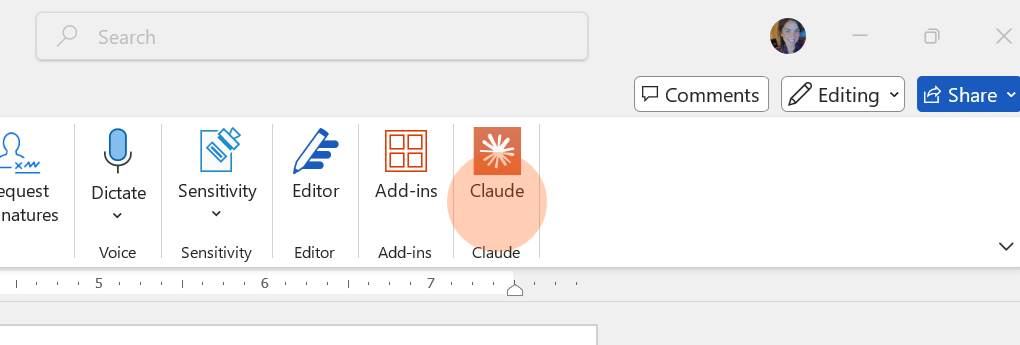
Claude is already in your Microsoft 365 apps, so there’s nothing to install.
- Open Word, Excel or PowerPoint
- Look at the far right end of the Home tab on the ribbon
- Select the Claude button to open the panel
- Sign in to Claude with your Netid and password
It’s the same in all three apps.
- Work on the file in front of you
Claude can see what’s open, so you don’t have to explain it. Select a paragraph in Word and ask Claude to tighten it. Highlight a range in Excel and ask what’s driving a trend. Ask Claude to restyle a slide in PowerPoint.
When Claude makes changes, the panel on the right side tells you what it changed. You then choose whether to accept the edits, so nothing sticks unless you say so.
- Let Claude work across apps
Claude can use one file to help with another, but the files need to be open at the same time. Open the Word document, Excel workbook and PowerPoint deck you want to use, then start from the app you want to change. Try one of these:
- In Word: “Using the budget numbers in my open Excel workbook, draft a one-page summary for my team.”
- In Excel: “Pull the figures mentioned in my open Word report into a table in this workbook.”
- In PowerPoint: “Use my open Word report to build a five-slide summary.”

Try It Your Own Way
Open a document you’re already working on and ask Claude to make one edit. You might be surprised how much time it saves.